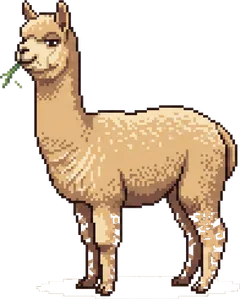
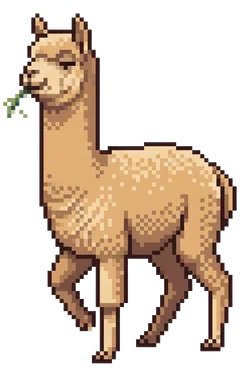
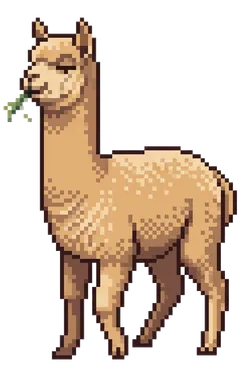
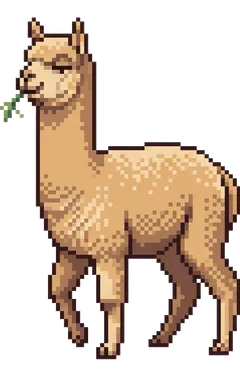
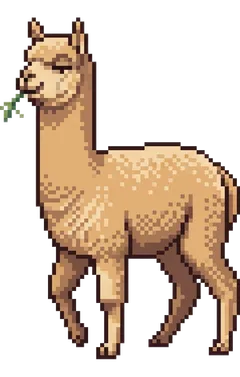
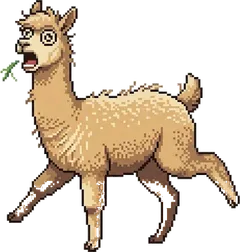
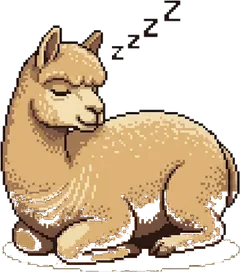
This tool turns photos and illustrations into retro game-style pixel art, and it can also simulate LEGO brick studs or a Perler/Hama bead board while counting how many pieces of each color you need. It is a good fit if you want to make bead art, a brick mosaic or a cross-stitch chart, or simply turn your profile picture into an 8-bit avatar. Drag an image onto the upload area or click to choose one, or press Load Sample Photo to see how it works first.
Pixel Grid Size ranges from 4 to 32 pixels and sets how many source pixels, in each direction, are merged into one cell. Larger values mean fewer cells, a more abstract picture and fewer pieces to place, although every result keeps at least a 10 × 10 grid. Color Palette Limit ranges from 4 to 64 colors: the tool uses k-means clustering to pick the colors that best represent your image, then swaps every cell for the nearest one. Once the settings look right, press Generate Pixel Art to update the result.
Handicraft Mosaic Mode offers three looks. None gives you flat pixel art, Lego Brick Mosaic draws a raised stud on every cell, and Perler Bead Grid draws each cell as a round bead with a hole on a dark pegboard. Transparent areas of the original are left as empty cells. The color table below is sorted by quantity and lists each color's HEX and RGB values, how many cells use it and its share of all filled cells, so you can estimate how much material to buy.
You can download the result as a PNG image or as an SVG vector file that stays crisp when printed large, which makes it handy as a building chart. Keep in mind that the colors in the table are RGB values calculated from your image, not official LEGO or bead manufacturer colors, so compare them with the shades you can actually buy. Everything is processed in your browser, and your photo is never uploaded to a server.